Frequently Asked Questions
”MyAnother thing about the USB drive we use is that it has no ‘write protect’ capability. In some instances your malware protection might delete the install file. If this happens, there is a folder called ‘Backup’ that has another copy. Copy (not move) this file to the top level of the USB drive and try again after telling the malware protection it is an OK file..
There are several ways to fix this situation.
1. During the install, you can redirect the install location from SeaMarks to Lorangps.
2. Use Windows Explorer to Move the file “UserPreferences” from the old folder to the newer one. And move all your other files too. It helps to have Windows Explorer set to “Details” or “Lists” instead of “icons” for this.
3. Use SeaMarks’ menu: Tools>UserPreferences>Restore Settings to fetch “UserPreferences.ini” from the “lorangps” folder. In this case you should get a message that the program has noticed that there is a folder called “C:\lorangps” which might have your stuff in it and it can direct you to use: File>Backup\Restore to move files from there to the new location. ..
One thing that seems to have issues with these two versions is Track Plotting. In Windows 10, it can crash the program and in Windows 11 I might just not plot the track.
Can I run it on more than 1 computer?Short answer, yes, as eLoran in some countries
UK eLoran Now in Operation to Back Up GPS
Technology to counter the threat of GNSS jamming is now available at Dover and along the east coast of the United Kingdom as the island nation continues to implement an enhanced Loran (eLoran) system that is setting an example for the world. See:<http://www.insidegnss.com/node/4264>
June 2013 North Korea’s GPS Jamming Prompts South Korea to Endorse Nationwide eLoran System
It was not your Loran!
If you used Loran Chains 9960 (NE US) or 8970 (Great lakes) and noticed that your waypoints were all off by 600 ft or so after 1/17/07, blame the Department of Homeland Security not your Loran. On January 17, 2007, the DHS changed the way the Loran stations work for these chains and as a result, your observed 9960 waypoints were off by about 0.5 us on the Whiskey line and 0.2 us on the Yankee line. See the article: time_of-transmission.htm . We made a fix for this situation starting in version 7.0.
The program now has two entries for 9960 and 8970. For example, there is 9960b for the before case and 9960a for the after case. By making your User Preferences include both, you can handle either case. You can also calibrate for either or both.
Winter/Summer values
EC NEWELL MAN » Fri Jan 22, 2010 on fishingunited.com/forum/ wrote:”I should point out a variation in Loran C numbers which we knew about for years. Many wreck fishermen from Shinnecock out east to Southern Massachusetts were familiar with getting both a SUMMER and a WINTER set of Loran C numbers for their favorite wrecks and rock piles. As many of these wreck fishermen learned, their Loran TDs would vary over the year from a few tenths off since a shift would occur as the numbers would shift south and east in the winter (down in tenths), then revert back north and west to the summer numbers (up in tenths). One wreck in particular, the Cable Wreck, was notorious for ‘disappearing’ when fishermen were given the numbers to that spot and not told when that set of numbers were taken!”
I sent this author an email that said: “I was browsing the web when I came across an interesting comment on your Jan 22, 2010 electronics forum. You mentioned that Loran C numbers have a summer and winter set in the Northeast. I hadn’t heard this before and it was not my experience in Florida. However, it makes sense if you consider the varying effect on the Loran signals by the change in foliage. That doesn’t happen here, but does where you are.”He further said in a communication with me:
“A prime example is the Cable Wreck which is east of Block Island RI, south of Cox Ledge.
Now I know you are as sharp as they come with this, so we see the offset easily and the shift from summer to winter for a wreck that went down in 1958, and is only 61 feet long….she has been reduced to bare bumps on the bottom, most likely her keel and steel (engine block/frame/fuel tank etc. giving any indication of her finally resting place:
Winter # 14493.2 43736.0
Summer # 14493.3-4 43736.4-3
Notice you have to figure in a greater offset on the 43 line.
This offset holds true from roughly Shinnecock through Cape Cod, and I can tell you that a famous wreck off Nantucket in 40 fathoms, the Republic, as big as it is, has also a summer OFFSET from the conventional TD numbers!
Another reason why when looking for wrecks, or doing conversions as your program does, there is a difference in accuracy with the 14 000 line and 25 000 line as it carries off to the east…as you go east of Shinnecock, the accuracy of each tenth gets worse in distance from roughly 50 feet, to 60, 70 and at times greater than 70 feet between tenths on that 25 000 line. It is the reason why when wreck hunting from this region, that you shy away from the 25 000 numbers which some draggers would use, and concentrate on the 14 000 number because of the inherent higher accuracy per tenth.
Just think about it, and you touched on it….in this region we have the big hills of the New Jersey Highlands which screws up any TD’s you convert in and around the Sandy Hook region….we have offsets shift here when moving to another spot a few hundred feet away, but thankfully land ranges (radar distance) can sort this out if you take them!
I can tell you many stories about shifting wrecks, and one last one is about the Great Lakes Barges in Ambrose Channel here in NY……this darn thing moves a few tenths (its one of the most noted for shifting until GPS came along)…it’s two wrecks which lay NW to SE, separated by a short distance…yet you would miss both of them if you didn’t remember the way numbers SHIFT during the season.”
The conversion accuracy approaches the basic accuracy of Loran if you are using calibrated Additional Secondary Factors (ASFs). The program comes with a set of ASF tables developed by the Defense Mapping Agency in the 1980s that are good to about 250 ft of accuracy. The program has also been pre-calibrated for certain areas where data was made available to us by customers, improving the accuracy in those ares to close to that of Loran. ASFs are correction factors and are used to compensate for the fact that the theoretical Loran number (based on the speed of light over salt water) is a little different from the Loran TD number you get on your Loran set. Land masses of various wetness, mountains, power lines, and cities will delay the Loran signals as they travel to you. This delay can change the observed Loran number by as much as 5 microseconds and will cause the Loran to Lat/Lon conversions to be less accurate than they could otherwise be. The delay is, however, usually very stable and repeatable. So, old Loran numbers are still good. For a graphic example of what the correction factors are and how they change over an area, check out the ASF charts for the Gulf of Lawrence as provided by the Canadian Coast Guard. Area3ASF_5930X.pdf, Area3ASF_5930Y.pdf, and Area3ASF_5930Z.pdf. These charts illustrate that the corrections can get large in some areas and depend on which loran secondaries you are using. Look at all three charts to see how the ASFs change and how much they change over the area. Remember the ASFs are in microseconds, and one tenth of a microsecond of error is (approximately) 40 to 120 ft depending on the geometry of the lines. A description of how the charts were created was presented in 1988 by David Gray at the Wild Goose Association annual meeting: “ASF Chartlets, a Picture is Worth 1000 Numbers“. For the ASF tables covering the US, you can download our ASF display utility that is also a part of the SeaMarks program.
Note that the conversions cannot get any more accurate than the original Loran waypoints were. That is if the Loran waypoint got you to within 90 feet, don’t expect a converted waypoint to be any better than that even if you use a WAAS GPS receiver to find it. The SeaMarks program comes pre-calibrated for several popular areas. More areas are being added as data becomes available from users who donate calibration waypoints. If you are operating in one of the areas where pre-calibrated ASF tables apply, then you will get better conversion accuracy than with the uncalibrated tables. Calibration extends out about 40 miles from where the calibration data is available.
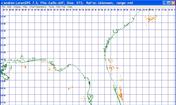

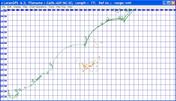
Many Loran and GPS sets have either a built in table of ASFs or provision for entering them. NOAA charts that show Loran lines were usually corrected for ASFs but they did not give any clue as to the correction used. NOAA once published ASF tables that were the basis of the built-in tables we use. With the help of Point Systems Inc. we scanned them in and OCR’d them to make the tables the program uses. These tables cover many of the commonly used Loran chains, specifically: 5930, 5990, 7960, 7980, 8970, 9940, and 9960. These tables are reasonably accurate, but your own data can be better. The government tables were generated in the 1970s using Milligan’s method. This consists of measuring, on a chart, how many miles of wet land, dry land, ocean, and cities the signal travels over for each point and then calculating the delay with Milligan’s formula. For you, the most accurate method for determining the ASF factors is to calculate them based on local reference points for which you know the both the accurate LAT/LON (preferably taken from a Differential or WAAS GPS) and the Loran numbers taken with a real Loran set. Enter both the GPS and Loran numbers as you enter your waypoints. Do this for many spots over a broad area to get the best results. Once you have entered the data, run the calibration routine.
Land based reference points are not desirable since the ASFs change rapidly near shore. Indeed, the government ASF tables do not cover land areas. A DGPS or WAAS waypoint is the best source of Lat/Lon, whereas a standard GPS waypoint is little better than Loran in accuracy. DGPS and WAAS can provide 15 ft. accuracy where it is available. Whether or not you use non differential GPS, take several waypoints so that the program can average the ASFs calculated from them and the Loran numbers and get better results.
When using the SeaMarks program to convert Loran chain numbers, it is possible to achieve an accuracy of better than 0.2 microseconds for “C” waypoints (about 100 ft.) and 2 microseconds for old “A” numbers. Keep in mind that the old “A” numbers were never very accurate to begin with and the calculations do not improve on that accuracy even if they are carried out to lots of decimal places. The same caution applies to Loran C waypoints.
Care should also be exercised when comparing our LAT/LON conversions with those of your Loran or GPS or other sources such as published lists and maps. Only if they are using the same ASFs and the same formulas will they be in close agreement. Only if the source specifically says that these were measured with both a GPS and a Loran can they be trusted. Since different Loran or GPS sets may use different ASFs and different methods of calculating, they will not necessarily agree with this program, other Loran sets or a GPS. Some older Lorans and plotters used simplified conversion formulas that have a significant error when used near the Loran stations. For this reason, most fishermen preferred to record waypoints by their Loran numbers rather then by computed LAT/LON. GPS waypoints are in LAT/LON and are very accurate providing that you use Differential GPS (DGPS) or Wide Area Augmentation System (WAAS).
To recap, the reason ASFs are needed is that the Loran waypoints you get at any point differ from the theoretical predictions by an amount that depends on how far over land and over water the signal travels getting to you. Basically, this means that the signals do not travel at the speed of light in a straight line, as radio waves should, but travel somewhat slower and curve around the Earth. As they travel over the Earth’s surface (which is slightly conductive), they are slowed down. The equations used in this program are corrected for an all sea water path. The built-in Additional Secondary Factor (ASF) tables provide the corrections for propagation over dry and moist land, lakes and cities.
For further information on Loran C and the conversion issues for US and Canadian waters, see: Canadian Coast Guard Radio Navigation This site offers information on radio aids to marine navigation and part 6 is on Loran C and has the charts of coverage and ASFs. Readers are cautioned that the accuracy tables therein show what you would get if you did not use ASF corrections. Another reference for Europe is: New ways of looking at Loran-C ASFs .
We cannot recommend calibrating your conversions based on data taken from dubious sources or over land, so be sure that calibration waypoints are from real measurements at sea. You do not need to calibrate if the accuracy you get in your area is OK
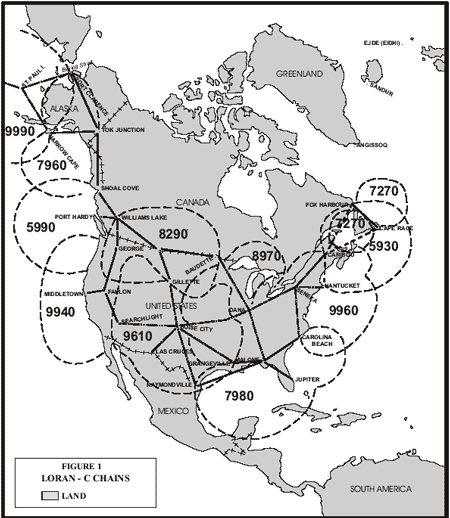
A chain consists of a master station and from 2 to 5 secondary stations. The stations are located hundreds of miles apart and provide coverage up to 1000 miles. For example, the 7980 chain is served by a master in Malone FL, and 4 secondaries in Grangeville LA, Raymondville TX, Jupiter FL, and Carolina Beach NC. They are known as the Wiskey, Xray, Yankee, and Zulu secondaries. You need to use two secondaries to get a fix. So, on the East coast between Jupiter and Carolina Beach, you would use the 7980Y and 7980Z secondaries.
LORAN-C COVERAGE GUIDE
Anomalies do exist in certain areas regarding the selection of a pair of stations. Local knowledge may suggest that a pair, other than those indicated below, are the stronger pair.
THE GREAT LAKES
The 9960 chain gave the best coverage in Lake Ontario and in Lake Erie. 9960W and 9960Z was the preferred pair in Lake Ontario. 9960Y and 9960Z was the preferred pair in Lake Erie.
8970X and 8970Y is the only reliable pair for Lake Superior and Lake Michigan.
Lake Huron falls in the coverage area of both the Great Lakes Chain (8970) and the Northeast Chain (9960). 8970X and 8970Y is the preferred pair but the 9960W and 9960Y pair also provides strong coverage in the southern part of the lake.
THE NORTHEAST COAST
The preferred coastal LORAN-C pair from the Canadian Border to Nantucket Island is 9960W and 9960X, close to shore. 9960W and 9960Y give reliable coverage further off-shore.
THE MID-ATLANTIC COAST
From Nantucket to Cape Hatteras, NC, the preferred pair is 9960X and 9960Y.
THE SOUTHEAST COAST
From Cape Hatteras to Fort Lauderdale, Fla. the preferred pair is 7980Y and 7980Z.
There is some overlapping coverage between the Northeast chain (9960) and the Southeast Chain (7980). South of Cape Fear, N.C. to Brunswick, Georgia, 9960X and 9960Y can be used offshore. Closer inshore from Cape Fear to St. Catherine’s Island, GA., 9960Y and 9960Z is the preferred pair.
SOUTH FLORIDA AND THE GULF COAST
From Fort Lauderdale around to Cape Sable the preferred pair is 7980W and 7980Z. 7980W and 7980Y provide the most reliable coverage along the entire west coast of Florida from Cape Sable to Panama City.
From Panama City to Mobile, Alabama, the preferred pair is 7980X and 7980Y.
In the western Gulf of Mexico from Mobile to Grangeville, Louisiana, the preferred pairs are 7980W and 7980X. From Grangeville to Brownsville Texas, the preferred pair is 9610Y and 9610Z although a lot of captains would have used 7980X and 7980Y even with its poor N-S accuracy as the 9610 chain was not available early on.
THE WEST COAST
5990Y and 5990Z is the preferred pair from the Canadian Border along the Washington State Coast down to about 44 degrees latitude (along the Northern Coast of Oregon). 5990X and 5990Z give a strong fix further off the Washington and Oregon Coast.
Off the southern portion of the Oregon Coast and the extreme northern portion of the California coastline, 9940W and 9940X provide the best intersections.
9940W and 9940Y are the preferred pair along the northern California Coast to just below San Francisco. 9940X and 9940Y is the best pair off the coast of southern California.
OBSOLETE CHAINS
If you have really old data, it is possible that the waypoints are from a now obsolete chain. For example, from 1966 to 1978, the East and South East US was covered by the 9930 chain. Data on this chain is available in the program and it can be converted to Lat/Lon. Some other obsolete Loran C chains are lost in antiquity and insufficient data is available for them. During that time, the Loran system was in transition and they were experimenting with the setup or were stretching the capability to cover more area with the fewer transmitting stations they had.
For Loran A coverage, consult the following graphic:
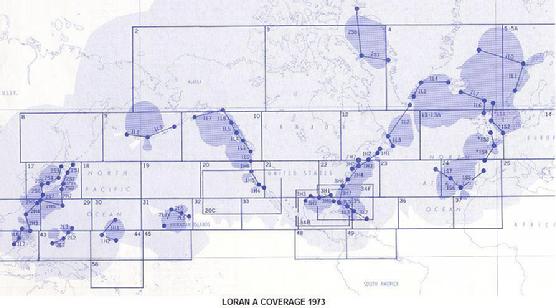
Loran A used two station pairs to get a fix. For example, for Tampa on the West coast of Florida, the typical pick was 3H0 and 3H1.
The SeaMarks program will help you find the right chain and slaves for your area..
Click here to Examine ASF table coverages these figures show the original pages of the ASF tables issued by the government....
Yes, it is targeted world wide. We have many non-USA customers, but do not have NOAA or 2D bathymetric charts for anywhere but the USA. It does have simple charts that consist of a coastline, Lat/Lon lines, Loran TD lines, and your points. You can, however, display your points on Google Earth (even with Loran lines). One other consideration is that it only uses the WGS 84 datum. Most GPSs come set up with this datum or can be set to it. Different datums use somewhat different Lat/Lon numbers for the same spot. Lastly, it does not have ASF tables for non-USA areas. This means that, if you are converting Loran numbers, you will need to calibrate the program for your fishing area by giving the program some known Loran and GPS data for some locations in your fishing area. Alternatively, if you have already figured the appropriate offsets, you can enter them directly in the program. Converting from one GPS brand to another is not an issue as this works everywhere as long as both are using the same datum.
With a download install, you will get a dialog with the message: “Enter the access code”. Just enter the access code that can be found in the e-mail sent to you when you ordered. If it was a CD install, and you get the message: “The User Preferences file is damaged or missing…” , then a needed file called “UserPreferences.ini” is probably missing. You probably pulled the CD/USB out prematurely. A copy of this file is sent on the CD./USB This file does not get installed with the program, but is fetched when the program first runs. Therefore the CD must be in the drive or you must copy the file from the CD to the SeaMarks folder before you first try to run the program. If you are upgrading, then you can copy this file from your old installation, if needed. This file is not meant to be opened by you but by the program. It simply needs to be resident in the program folder when the program runs.
If the program has been running for a while but now gets the message: “The User Preferences file is damaged or missing…” , then the file is probably corrupted and needs to be re-copied from the CD or USB. If you can get there, there is a button on the Tools>UserPreferences menu to re-fetch the virgin UserPreferences file from the CD or USB. Otherwise, you can manually copy the file from the CD or USB to the SeaMarks folder.
For any other problem, try an uninstall/re-install before calling.us.
- Download the updated WMM.dat file by left clicking this link: WMM.zip
- Extract the file (WMM.dat) from the zipped folder
- Save the new WMM.dat file over the old WMM.dat file. This file is located in the folder where your copy of the program is installed, normally C:\SeaMarks (was Lorangps). The program requires the file be named “WMM.dat” so don’t rename it.
Another customer wrote: You can add the HP Photosmart 7280 All- In- One to this driver problem list.
And, if you have a GPS with a memory card and a computer with a card reader you should be able to import/export the card’s file format. That way, you do not need a cable at all.
Note: If the COM port number set by Windows is out of the range handled by the uploader/downloader you are using, then do the following:
1. Open the Windows Control Panel/Device Manager. In XP: Right click My Computer Icon–Properties–Hardware–Device Manager
2. Right click on the COM port you want to change.
3. Left click on Properties.
4. Click on the Port Settings tab.
5. Click on the Advanced… button.
6. Use the drop down list to select the COM port number you want to use.
7. Click OK.
8. Click on OK again and close Device Manager.
Click here to see a screen capture of this process
In Version 7.0 three more fields were added to improve the ability to handle data imported from GPSs. Older versions of the SeaMarks program that use DOS have a different file structure but it is recognized by the normal File_Open routine. Earlier version files will be automatically updated for the Name, Depth, and Icon fields as they are opened for the first time.
If you have a Garmin, Lowrance, Eagle, Furuno, Magellan, NorthStar, Sea-Nav, Simrad, or Raymarine GPS, you should be able to use the built-in upload/download or import/export capability of the program in lieu of using another program to upload and download the GPS. Most new GPSs have the ability to load and save the waypoints as files onto a memory card of the SD and CF varieties. The program has import/export utilities to handle most of these files. The following list shows the GPS track Plotters known to be compatible with this program.
GPS Track Plotters:
C-Map XML or userimg.bin for any GPS that uses C-Map cards
Eagle USR
Furuno GP30, 32, 33, 37 serial cable connection
Furuno DMX
Furuno NavNet RAT/ROU, PNT, or BIN
Furuno NavNet-3D CSV
Furuno Time Zero TZD
Garmin serial cable connection
Garmin USERDATA.ADM or GPX
Hondex wpt and evt
Humminbird HWR
Koden_KGP
Lowrance USR, WS1
Northstar NMEA NTI or userimg.bin
Northstar 941 series serial cable connection
Northstar M series
Raytheon NMEA WPL
Raymarine C-E series archive.fsh
Raymarine TXT, GPX
Raymarine Waypoint File RWF
Samyung DAT import only
Simrad userimg.bin
Simrad USR, XML
Sitex MRK, userimg.bin, GPX
Standard Horizon NMEA WPL
Using this capability, you can move your waypoints between brands and models when upgrading your GPS. An attempt is made to match Icons between brands, but this cannot be guaranteed.
If, however, you are trying to work with another program or data source to import or export data, this list shows other the programs that handle waypoints and that the SeaMarks program can exchange data with.
Programs and file types
ASCII (pure text in CSV format) with selectable fields
C-Map PC Planner
Garmin PCX5
Gardown10
G7TOWIN
GPSUtility
GPX
Humminbird PC
Loran Locator LX or AX
Lowrance GDM6, LS1
MaxSea (for Furuno)
MPS, GDB for Garmin mapsource or HomePort
Maptech marks.rec or mark32.txt
NMEA GLL, RMC, GGA, GLC, WPL, RMA, CLF, NTI, and FEC
Nobeltec ONF
Northstar WinDBLoad
Offshore Hunter text export
Ozi-Explorer DMX
P-SEA WindPlot
Raytech Navigator
XML
and others; using GPS Babel
Download the manual and read chapters VI.6.6 through VI.6.12 for a detailed look at these routines.
EXPORT FILES
The SeaMarks program will export files which can be imported by the routines listed above. It will export NMEA in only the Raytheon and NorthStar varieties.
In all the exports that target loading waypoints into a GPS, an Export Options dialog comes up to help you select what is to be exported. The first choice is how many waypoints to export assuming that the file has more than the GPS can hold and the second is whether or not to include the reference Inlet.
For Garmin/Mapsource exporting, assuming you don’t want to use the cable upload/download capability, you would use the userdata.adm, or GPX capability. The Garmin software will alphabetically sort your file and will reject any duplicated names.
For Eagle/Lowrance if you do not use the cable uploading capability, you can create USR files to write to an SD card.
USING EXCEL TO TRANSFER DATA
Excel can open the dBase files native to the SeaMarks program. Excel 2007 versions and beyond can not save dBase files, so they cannot be used to send data directly to SeaMarks. However all versions of Excel can take SeaMarks files and convert them to another form such as CSV (Comma Separated Values)that can be readily imported.
The program comes with many capable importing routines, but it can’t handle all possible situations. Microsoft’s EXCEL is an excellent tool for importing and exporting between the program and arbitrary text and formatted files like found on the Internet. See the Videos posted on this website. What you need to do in Excel is reformat the information into the right sort of data and save the file as “CSV (comma delimited) (*.CSV)”. If the description fields have commas then replace them with something else like semicolons. Having extra commas in a CSV file will cause the waypoint to be read incorrectly. The steps are as follows:
1. Open the source data in Excel
2. Start by making sure the latitude and longitude data is in the right format. Some data on the Internet separates the hemisphere (E/W and N/S) indicators and/or the degree and minute data into different columns. It is necessary for the numeric data (degrees and minutes) be in one column for each of latitude and longitude. The acceptable formats for Lat/Lon are listed elsewhere in this document. If the degree and minute data is in separate columns, that needs to be fixed. One way to accomplish this is to create two new columns and fill them with the degree data plus the minute data divided by 60. The hemisphere (E/W and N/S stuff) is not necessary, so if it is in separate columns, that is no problem unless it separates the lat and lon columns. In that case delete the N/S and E/W columns. If the hemisphere letters are in the same column as the numbers, it is OK if they trail the number, but not if they lead. Delete them if they lead the numbers.. You can use the Replace function for this.
3. Do a global search and replace of all commas with semicolons. Extra commas will make the file get read incorrectly, that is, it can shift some of the data into the wrong fields.
4. Save the file as “CSV (comma delimited) (*.CSV)” by setting this type in the Files-Of-Type box that is part of the Save-As dialog.
5. Then, with the SeaMarks program open, go to tools>Import Waypoints>Text>comma delimited. Ignore the file already loaded as that will be dumped from memory once the import takes place.
6. You will get a new dialog to specify the fields to be imported.
7. If the data was Loran and the Lat/Lon fields (or TD fields) are zero or wrong, don’t worry, you can calculate the Lat/Lon (or TDs) using Tools>Recalculate Lat/Lon (or Tools>Convert File) later.
8. Save the file, giving it a new name if desired.
9. Make sure the center Lat & Lon, Inlet name, and Inlet Lat/Lon are right in the file by examining File>File Properties. If they are not right for the data you imported, fix them.
One caution on using Excel. It is not a data base program, so it does not maintain the rows of the spreadsheet as records.. That is, if you don’t select all columns when doing a sort, you can destroy the data. If you sort only the latitude column, but not the rest of the data, that makes the waypoints useless.
The C-Map C-card reader looks like:
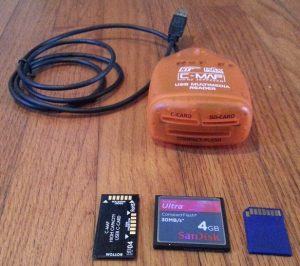
The Furuno Proprietary card reader looks like:
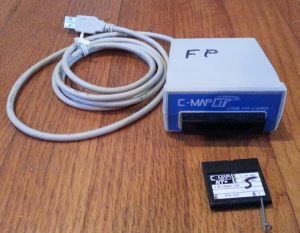
The above reader also handles the Navionics version of the card which looks like a cut off C-Card as shown here.
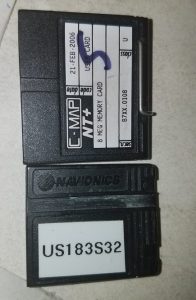
The Garmin Data Card Programmer looks like this
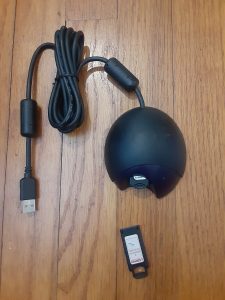
If you have one of these proprietary card types and don’t have a reader for them, you can mail it to us to read and convert to a file or SD card that you can use. The fee will depend on how much we need to do. If you need an FP or Garmin Proprietary card to do the transfer, we can loan one (with large deposit) to you to mail beck for reading or writing.
If you have one of these programmers or cards and no longer need it, then contact us as we get requests for them and they are very difficult to find.
Another way to get the files transferred is by the Upload/Download capability using a cable. In most cases, you would have to purchase the appropriate cable on-line.
I have had some success and some failures in scanning and OCRing (Optical Character Recognition) waypoint lists. Try all the OCR software you can find to see what works best. OCR software comes with every scanner and you can also get the FreeOCR software that I find useful too. I use ABBYY FineReader since it has more user input like being able to identify a spreadsheet as such. However, it too can screw up. Once I have a reasonable copy, I either use Word or Excel or both to get it into a CSV file for importing. I make lots of use of the Global Search and Replace function to either add commas or delete unnecessary stuff. It is best if the page does not have grid lines as they often screw up the scanning process if they are faded. See one of the videos on this subject.
Some handy techniques.
If the Loran TDs or Lat/Lons are not separated by a comma, and the first two characters of the second one are always the same, then you can take 28 40.123 83 25.583 and do a global search and replace on that column of ” 83 ” with ” ,83 “. Note the spaces, they are necessary to insure that you don’t end up with ” ,83 25.5,83″. Hemisphere indicators like E and N are OK at the end of numbers, but not at the beginning. Again, the Replace function can get rid of them like replace “N4” with “4”. If SeaMarks is importing Loran TDs or Lat/Lons, it will stop at the first non number character.
If you need a TAB character,in Word it is “^t” .
Word allows you to select a column if you hold down the Alt key while selecting. Otherwise. it will always select all the columns. With this technique, it is possible to select a column from the Word source and paste it into a column of Excel. The goal is to get the text into a comma delimited format that SeaMarks will import. If saving from Word make sure it is plain text and if from Excel, select CSV (comma delimited).
My missing feature wish list for OCR software is as follows:
1. be able to specify that only one particular font of a particular size is used in the document
2. be able to specify that only number characters are in this column. No more 832S.S83
3. be able to specify that horizontal and/or vertical grid-lines are with the selected text and I do not want them..
If any one knows of such software, let me know.
Sometimes it is easier to just type the data in. Or perhaps use something like Dragon Naturally Speaking for voice to text.
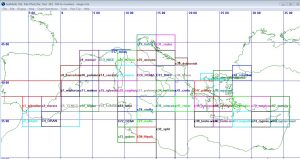
The ones they have for the Caribbean do not seem to work. Try also, openseachart.org and look for BSB/KAP charts. They have some free ones for South america. If you know of another source of charts for non-USA areas, please let us know.
What is occurring here is that the SeaMarks folder in the root of the C-Drive (C:\SeaMarks\) is being set as Read-Only. In my computers, running Windows XP, 7, and 10, I have not seen this issue. This seems to be a rare problem unique to the Asus computer. Manually un-setting the Read-Only attribute did not work. At this point, the only thing that would help this customer, was to copy the SeaMarks folder to Documents. This, however might prevent using the “Display on NOAA chart” function as it may introduce a space character in the charts path and that is not allowed by the Display NOAA Chart tool used in SeaMarks. To handle this,if it happens, when Displaying on a NOAA chart, make sure to use the charts in the original SeaMarks folder at the root of Local Disk C. If you want to save space, you can remove all NOAA charts from the SeaMarks folder in Documents. They are the ones with BSB, KAP, NOS, and GEO filename extensions. You could also remove all non-chart files from the SeaMarks folder in the root of Local Disk C. .